What's new in HttpLogBrowser 4.64
A new small release of the HttpLogBrowser is available with the following new features.
Support of custom fields with Apache/nginx combined logs
The HTTP log format used in Apache or nginx web servers is less flexible than the extended log format used in IIS that allows to support additional fields by design. With these web servers, the previous versions of the HttpLogBrowser supported the following log formats:
-
The Common log format defined by the declaration
LogFormat "%h %l %u %t \"%r\" %>s %O" common -
Combined log format defined by the declaration
LogFormat "%h %l %u %t \"%r\" %>s %O \"%{Referer}i\" \"%{User-Agent}i\"" combined -
And the following not standard log format explained in the blog article Configure Apache access logs on Ubuntu server and defined by the declaration
LogFormat "%h %l %u %t \"%r\" %>s %O \"%{Referer}i\" \"%{User-Agent}i\" %{ms}T %p %{Host}i" extendedThis log format adds to the combined log format the time taken by the request in milliseconds, the port and the hostname found in the request.
With the version 4.64 you can now add your custom fields at the end of these already supported log formats. These fields should always be added at the end of the line. The first part of the log line should be one of the already supported log formats.
If the parser detects additional fields, you will automatically see new columns appear in the data grids of the application as CustomField1, CustomField2, ….
And with the professional edition you can even give a name to these fields with the Additional fields link in the log settings, either globally or per profile.
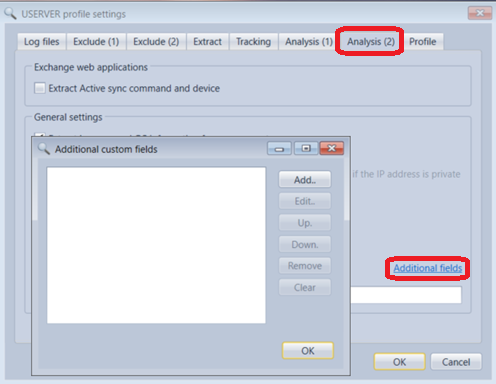
Ability to sort log rows from oldest to newest
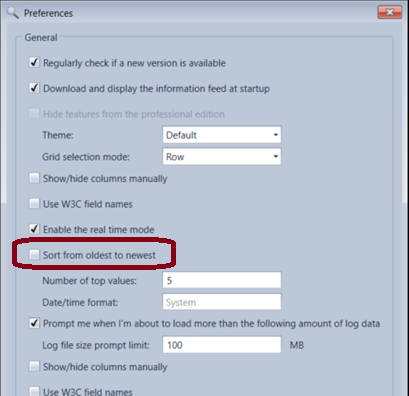
In previous versions the log rows were always ordered from the newest to the oldest by default like in the Windows event viewer. If you are more comfortable with Linux environments and often use the tail function to display the end of a log file you may prefer it sorted from the oldest to the newest.
You can now choose that order by default in the preferences with the option Sort from oldest to newest.
Export the data grids to TSV files
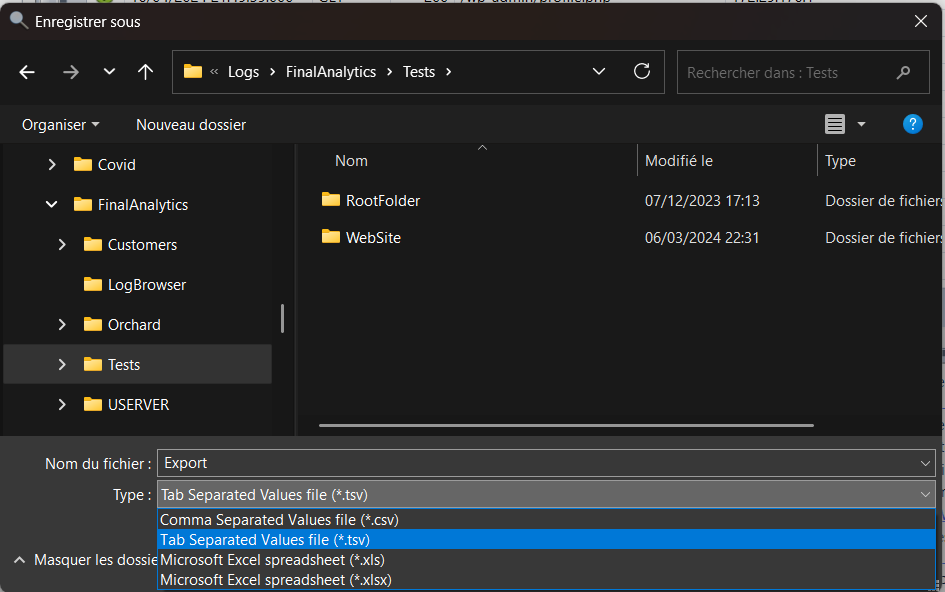
Now you can export the data grids to TSV files (columns separated by tabs) in addition to the already supported formats XLS, XLSX and CSV.
Normalize URL paths to lowercase
In Windows the file paths are case insensitive, and it is the same for URL paths in IIS. So, you may want to normalize the field UrlPath to lowercase so the same URL is always grouped accordingly.
To do so, check the option Normalize URL path to lowercase in the log settings, next to Remove the trailing slash. This option is disabled by default.
Keep the proxy address when the X-Forwarded-For HTTP header is used
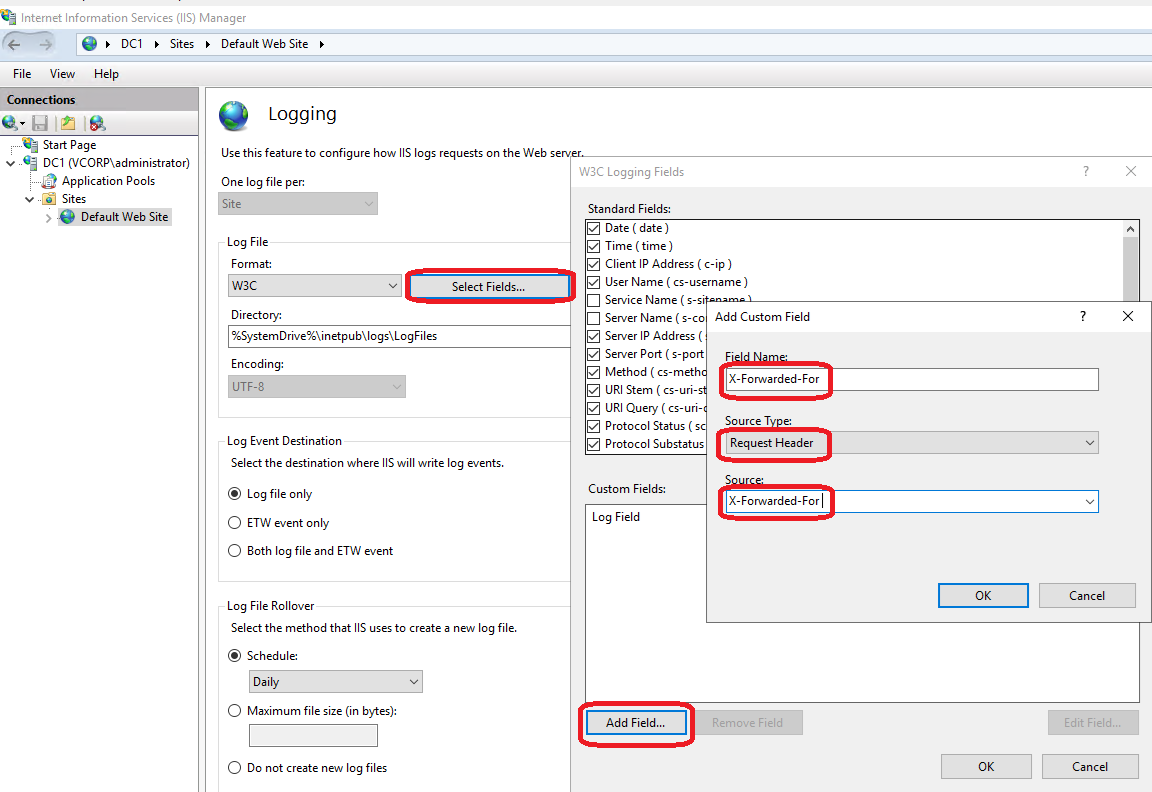
When a web server is behind a reverse proxy you will see the address of the proxy as client IP and you will not know the actual address of the internet user. However most reverse proxy servers add this address in a HTTP header named X-Forwarded-For. In IIS this header can be added in the logs with a custom field like in the following screenshot.
In previous versions when the field X-Forwarded-For was detected in the logs it was stored in the ClientIp field instead of the client IP seen by the web server. So, for a web server behind a proxy, you could see the actual address of the internet user instead of the proxy address. But in consequence the proxy address was lost. This was not critical in most cases but in some scenarios when the web server can be accessed with or without the proxy or through several proxies it may be important to keep this information. So with this new version the proxy address is now stored in a new field named Proxy.
The Proxy field is only added when the X-Forwarded-For field is present in the logs. When the header contains several addresses because the request went through several proxies, only the first one, the address of the original client, is stored in ClientIp.
Some reverse proxies add the port number to the address of the client (e.g. 192.168.1.10:51234 or [2001:db8::1]:51234). The port is removed so the ClientIp field only contains the IP address, both for IPv4 and IPv6 addresses.
As the X-Forwarded-For header can easily be forged by any client, with the professional edition you can also define the list of your trusted reverse proxies with the Trusted reverse proxies link next to the option Lookup the country of the client IP address in the log settings, either globally or per profile. When this list is not empty, the X-Forwarded-For header is only used for the requests coming from one of these proxies. For the other requests it is ignored and the client IP seen by the web server is kept. If the list is empty, every client IP address is trusted.
Support of more than 64 log folders
In the multiple folder modes of the professional edition (root folder mode and all IIS sites mode), the log files of all the folders are merged in parallel in chronological order. This mode was limited to 64 log folders. With this version there is no longer a limit: when there are more than 64 folders, the log folders are loaded one after the other. The dynamic loading of the log files is also supported in this case.
The loading is also faster when a date limit is set: the log files last modified more than 5 days before the date limit are now skipped instead of being parsed.
Bug fixes in this version are listed in the change log.